

As we know, the operating system of the Android emulator is different from the Windows operating system. While by enabling virtualization technology, you can play mobile games&apps on your Windows 10 or 11. In this article, you can get the ultimate steps to enable virtualization technology and the problems you may meet during the process.
Quick Navigation
-
1. Why do I have to enable virtualization on Windows 10 or 11?
-
2. First check whether virtualization is supported by your PC
-
6. VT has been enabled in BIOS, but not detected by LDPlayer?
Check this video out if you want to learn quickly how to enable Virtualization (VT) on your PC.
The emulator needs to run in an "independent" environment separating from the Windows OS, and VT is designed for providing this environment. Enabling virtualization allows the emulator to get more computer resources to run apps or games. In order to ensure the smoothness of gaming experience on LDPlayer, virtualization must be enabled.
The emulator needs to run in an "independent" environment separating from the Windows OS, and VT is designed for providing this environment. Enabling virtualization allows the emulator to get more computer resources to run apps or games. In order to ensure the smoothness of gaming experience on LDPlayer, virtualization must be enabled.
The emulator needs to run in an "independent" environment separating from the Windows OS, and VT is designed for providing this environment. Enabling virtualization allows the emulator to get more computer resources to run apps or games. In order to ensure the smoothness of gaming experience on LDPlayer, virtualization must be enabled.

The emulator needs to run in an "independent" environment separating from the Windows OS, and VT is designed for providing this environment. Enabling virtualization allows the emulator to get more computer resources to run apps or games. In order to ensure the smoothness of gaming experience on LDPlayer, virtualization must be enabled.
The emulator needs to run in an "independent" environment separating from the Windows OS, and VT is designed for providing this environment. Enabling virtualization allows the emulator to get more computer resources to run apps or games. In order to ensure the smoothness of gaming experience on LDPlayer, virtualization must be enabled.
The emulator needs to run in an "independent" environment separating from the Windows OS, and VT is designed for providing this environment. Enabling virtualization allows the emulator to get more computer resources to run apps or games. In order to ensure the smoothness of gaming experience on LDPlayer, virtualization must be enabled.
The emulator needs to run in an "independent" environment separating from the Windows OS, and VT is designed for providing this environment. Enabling virtualization allows the emulator to get more computer resources to run apps or games. In order to ensure the smoothness of gaming experience on LDPlayer, virtualization must be enabled.
The emulator needs to run in an "independent" environment separating from the Windows OS, and VT is designed for providing this environment. Enabling virtualization allows the emulator to get more computer resources to run apps or games. In order to ensure the smoothness of gaming experience on LDPlayer, virtualization must be enabled.
The emulator needs to run in an "independent" environment separating from the Windows OS, and VT is designed for providing this environment. Enabling virtualization allows the emulator to get more computer resources to run apps or games. In order to ensure the smoothness of gaming experience on LDPlayer, virtualization must be enabled.

Step 2: Enable Virtualization Technology in your BIOS settings
After you enter BIOS, press the ←, →, ↑ or ↓ key to switch from one item to another if you don't see your cursor on your screen. In addition, pressing the Enter key will allow you to have one item selected.
Find the VT item which is usually named Intel(R) Virtualization Technology, Virtualization, Virtual, VT-X or SVM. In general, you can find it here: Advanced > Processor Configuration/CPU Configuration. Select Intel(R/VMX) Virtualization Technology and change to Enabled.
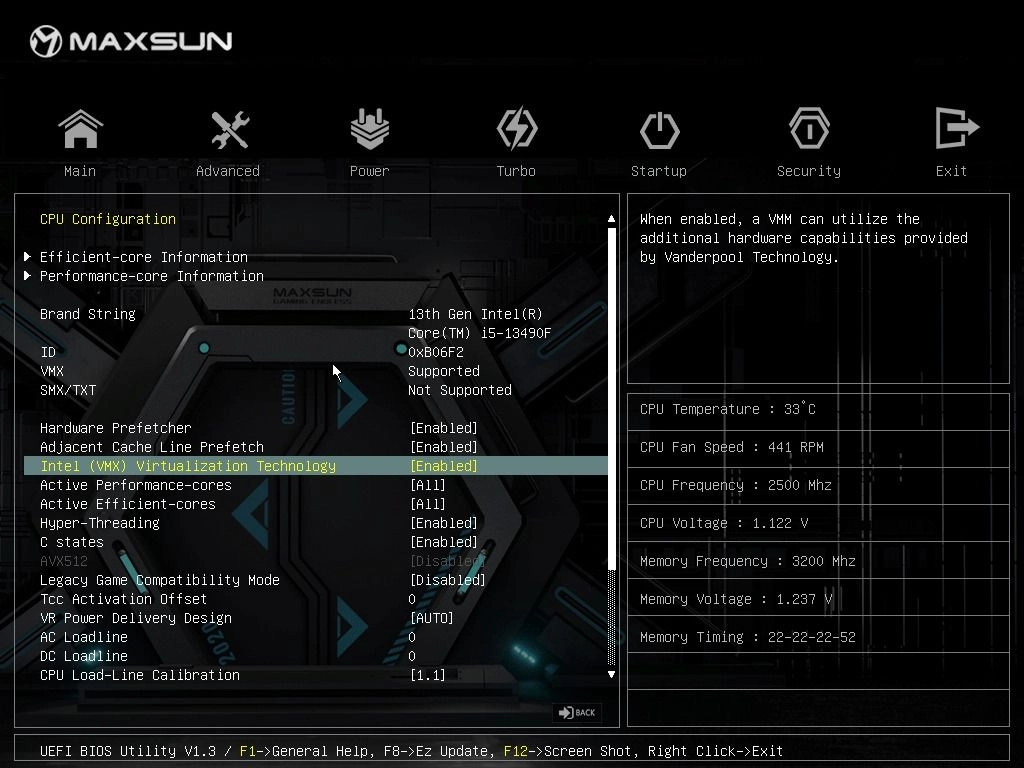
Last but not least, press the F10 key to save and exit
Extra: Guides to enable VT on different computers or motherboards
Enable Virtualization Technology (VT) on Lenovo desktop and laptop
Enable Virtualization Technology (VT) on ASUS desktop and laptop
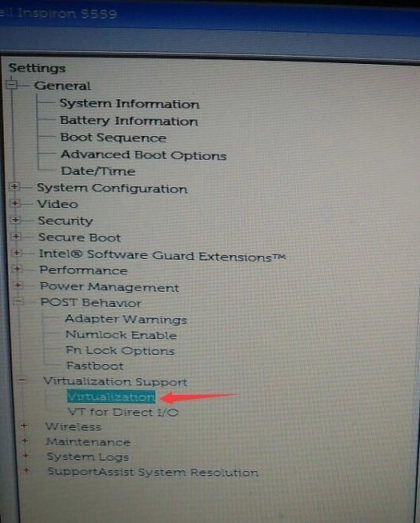
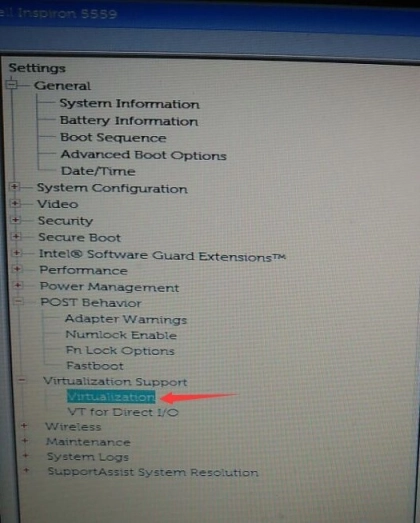
Enable Virtualization Technology (VT) on Dell desktop and laptop
Enable Virtualization Technology (VT) on HP desktop and laptop
Enable Virtualization Technology (VT) on MSI computer and motherboard
Enable Virtualization Technology (VT) on GIGABYTE computer and motherboard
5. PC boots too fast to access BIOS?
The computer's startup speed is too fast, which makes it too late to press the corresponding key to enter the BIOS. You can refer to this guide and follow the operations to solve the fast startup problem in the computer.
6. VT has been enabled in BIOS, but not detected by LDPlayer?
The virtualization has been enabled on Windows 10/11, but the VT prompt still appears in the upper right corner of the emulator. This may be caused by the Hyper-V of your Windows operating system or the antivirus program Avast occupying the computer VT technology. Check this tutorial to solve the VT not detected by LDPlayer error.
7. Other optimization tutorials for Android Emulator
If you still feel that the emulator lags after enabling the virtualization technology, you can read the following emulator optimization tutorials.
Uninstall an update KB4100347 for Windows 10 to improve CPU performance by 10%
How to Update Graphics Driver for Maximum Gaming Performance
How to Switch From Integrated GPU to Dedicated GPU (NVIDIA-AMD)
Thank you for using LDPlayer, and we hope you will like it. If you have other questions, you can contact us through the following Email: support@ldplayer.net