
As we know, the operating system of the Android emulator is different from the Windows operating system. While by enabling virtualization technology, you can play mobile games&apps on your Windows 10 or 11. In this article, you can get the ultimate steps to enable virtualization technology and the problems you may meet during the process.
Quick Navigation
-
1. Why do I have to enable virtualization on Windows 10 or 11?
-
2. First check whether virtualization is supported by your PC
-
6. VT has been enabled in BIOS, but not detected by LDPlayer?
Check this video out if you want to learn quickly how to enable Virtualization (VT) on your PC.
The emulator needs to run in an "independent" environment separating from the Windows OS, and VT is designed for providing this environment. Enabling virtualization allows the emulator to get more computer resources to run apps or games. In order to ensure the smoothness of gaming experience on LDPlayer, virtualization must be enabled.

The emulator needs to run in an "independent" environment separating from the Windows OS, and VT is designed for providing this environment. Enabling virtualization allows the emulator to get more computer resources to run apps or games. In order to ensure the smoothness of gaming experience on LDPlayer, virtualization must be enabled.
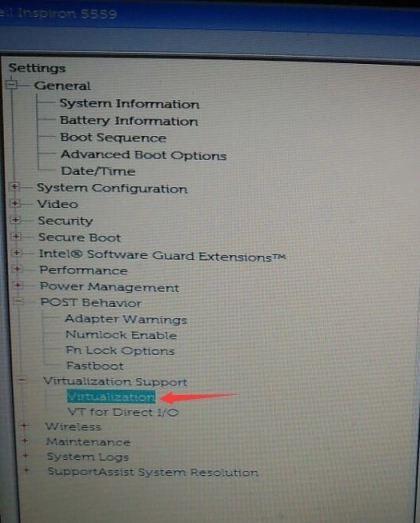
The emulator needs to run in an "independent" environment separating from the Windows OS, and VT is designed for providing this environment. Enabling virtualization allows the emulator to get more computer resources to run apps or games. In order to ensure the smoothness of gaming experience on LDPlayer, virtualization must be enabled.
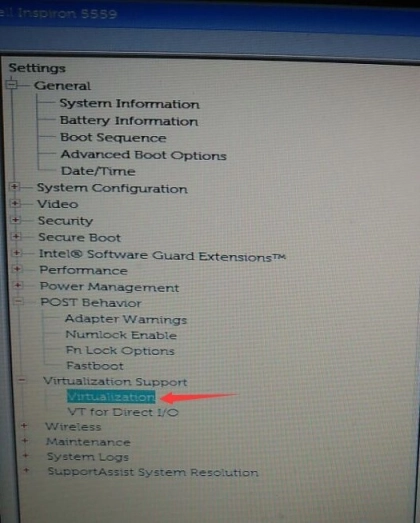
The emulator needs to run in an "independent" environment separating from the Windows OS, and VT is designed for providing this environment. Enabling virtualization allows the emulator to get more computer resources to run apps or games. In order to ensure the smoothness of gaming experience on LDPlayer, virtualization must be enabled.

The emulator needs to run in an "independent" environment separating from the Windows OS, and VT is designed for providing this environment. Enabling virtualization allows the emulator to get more computer resources to run apps or games. In order to ensure the smoothness of gaming experience on LDPlayer, virtualization must be enabled.
The emulator needs to run in an "independent" environment separating from the Windows OS, and VT is designed for providing this environment. Enabling virtualization allows the emulator to get more computer resources to run apps or games. In order to ensure the smoothness of gaming experience on LDPlayer, virtualization must be enabled.
The emulator needs to run in an "independent" environment separating from the Windows OS, and VT is designed for providing this environment. Enabling virtualization allows the emulator to get more computer resources to run apps or games. In order to ensure the smoothness of gaming experience on LDPlayer, virtualization must be enabled.
The emulator needs to run in an "independent" environment separating from the Windows OS, and VT is designed for providing this environment. Enabling virtualization allows the emulator to get more computer resources to run apps or games. In order to ensure the smoothness of gaming experience on LDPlayer, virtualization must be enabled.
The emulator needs to run in an "independent" environment separating from the Windows OS, and VT is designed for providing this environment. Enabling virtualization allows the emulator to get more computer resources to run apps or games. In order to ensure the smoothness of gaming experience on LDPlayer, virtualization must be enabled.